
The n8n integration lets workflows fetch cookies from your browser over HTTP — no manual export required. The encryption password is stored only in the extension; the server never receives it.
Architecture
n8n ──HTTP GET──► Cookie Editor Server ──WebSocket──► Extension ──► chrome.cookies
                        │                                    │
                        └──── encrypted data ◄───────────────┘
n8n decrypts with the password you configured
Step 1: Open the n8n tab
- Open the Cookie Editor side panel.
- Click the n8n icon in the right sidebar.
- The extension opens a dedicated
n8n.htmltab.
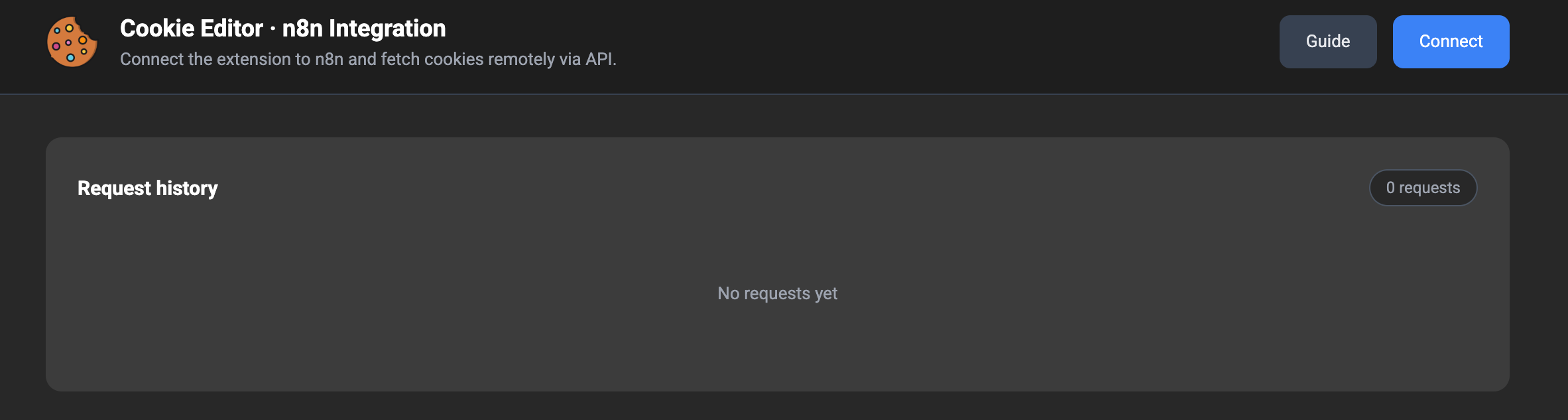
Step 2: Connect the extension to the server
- Click Connect.
- Grant
storageandalarmspermissions if prompted. - Enter an encryption password in the Connect modal.
- This password is not sent to the server.
- It is stored locally in the extension — use the same value when decrypting in n8n.
- The extension opens a WebSocket to
wss://cookieeditor.org/ws/n8n(dev:ws://localhost:3000/ws/n8n). - The server returns a
client_keylikeck_xxxxxxxx-xxxx-xxxx-xxxx-xxxxxxxxxxxx.
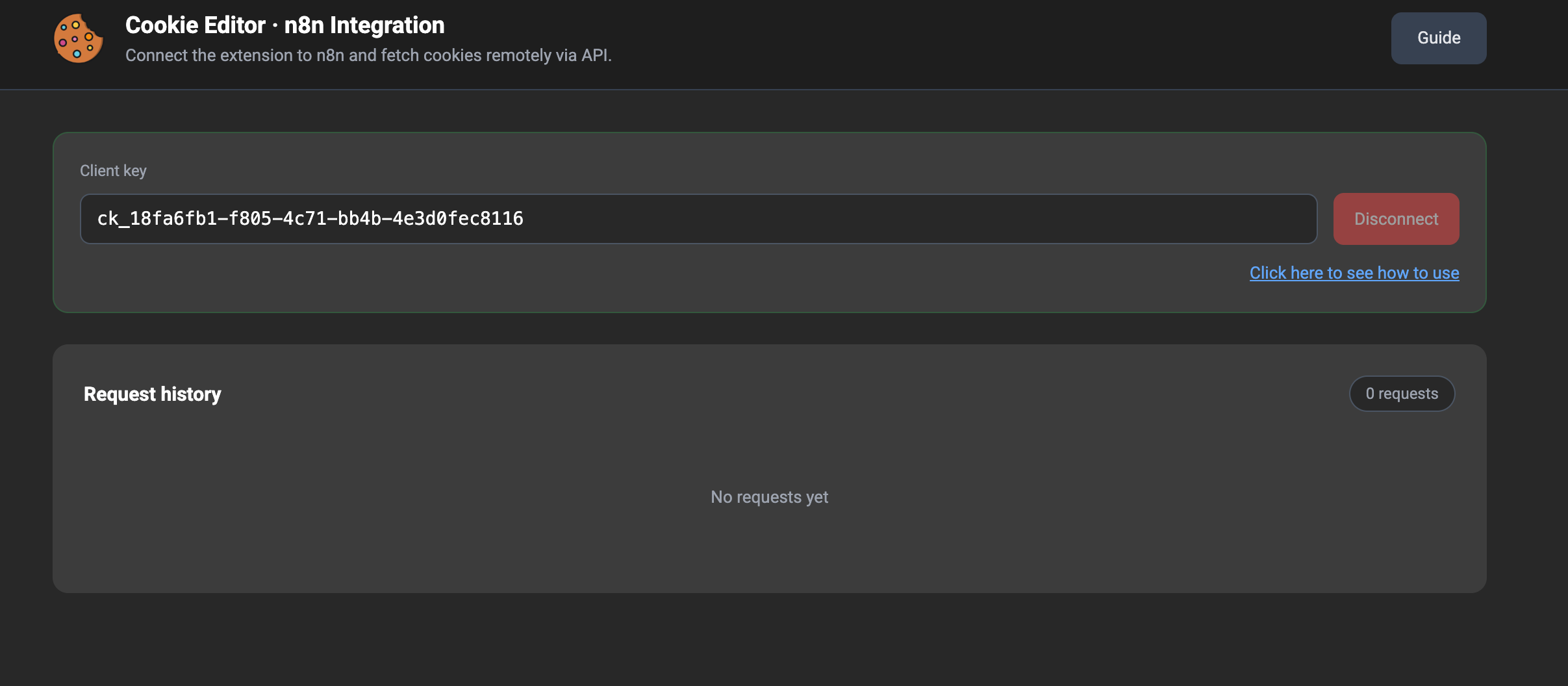
Step 3: Copy client_key
After a successful connection, copy the client_key shown on screen. Use it in every API request from n8n.
The Usage / View usage tab in the extension includes ready-made fetch, curl, and n8n Function examples.
Step 4: Call the API from n8n
HTTP Request node
Method: GET
URL: https://cookieeditor.org/api/n8n/cookies
Query:
  client_key: {{ $env.COOKIE_EDITOR_CLIENT_KEY }}
  url: https://example.com
curl
curl "https://cookieeditor.org/api/n8n/cookies?client_key=ck_YOUR_KEY&url=https://example.com"
fetch (JavaScript)
const res = await fetch(
  "https://cookieeditor.org/api/n8n/cookies?client_key=ck_YOUR_KEY&url=https://example.com"
);
const json = await res.json();
// json.data = AES-encrypted cookie string
Success response
{
  "success": true,
  "request_id": "550e8400-e29b-41d4-a716-446655440000",
  "client_key": "ck_...",
  "url": "https://example.com",
  "domain": "example.com",
  "data": "U2FsdGVkX1+..."
}
Step 5: Decrypt in n8n
Add a Function node after the HTTP Request:
const CryptoJS = require('crypto-js');

const encrypted = $input.first().json.data;
const password = $env.COOKIE_EDITOR_PASSWORD; // same password as Connect

const decryptedBase64 = CryptoJS.AES.decrypt(encrypted, password)
  .toString(CryptoJS.enc.Utf8);

if (!decryptedBase64) {
  throw new Error('Decryption failed — wrong password?');
}

const cookies = JSON.parse(atob(decryptedBase64));

return cookies.map((cookie) => ({ json: cookie }));
Install the
crypto-jspackage in n8n if needed. The password must match what you entered when connecting the extension.
What happens when n8n calls the API
- n8n sends
GET /api/n8n/cookies?client_key&url - The server finds the WebSocket session by
client_key - The server sends
{ type: "get_cookies", request_id, url }to the extension - Extension:
chrome.cookies.getAll({ url })→ AES encrypt → sendscookies_result - The server returns encrypted
datato n8n - n8n decrypts with your password
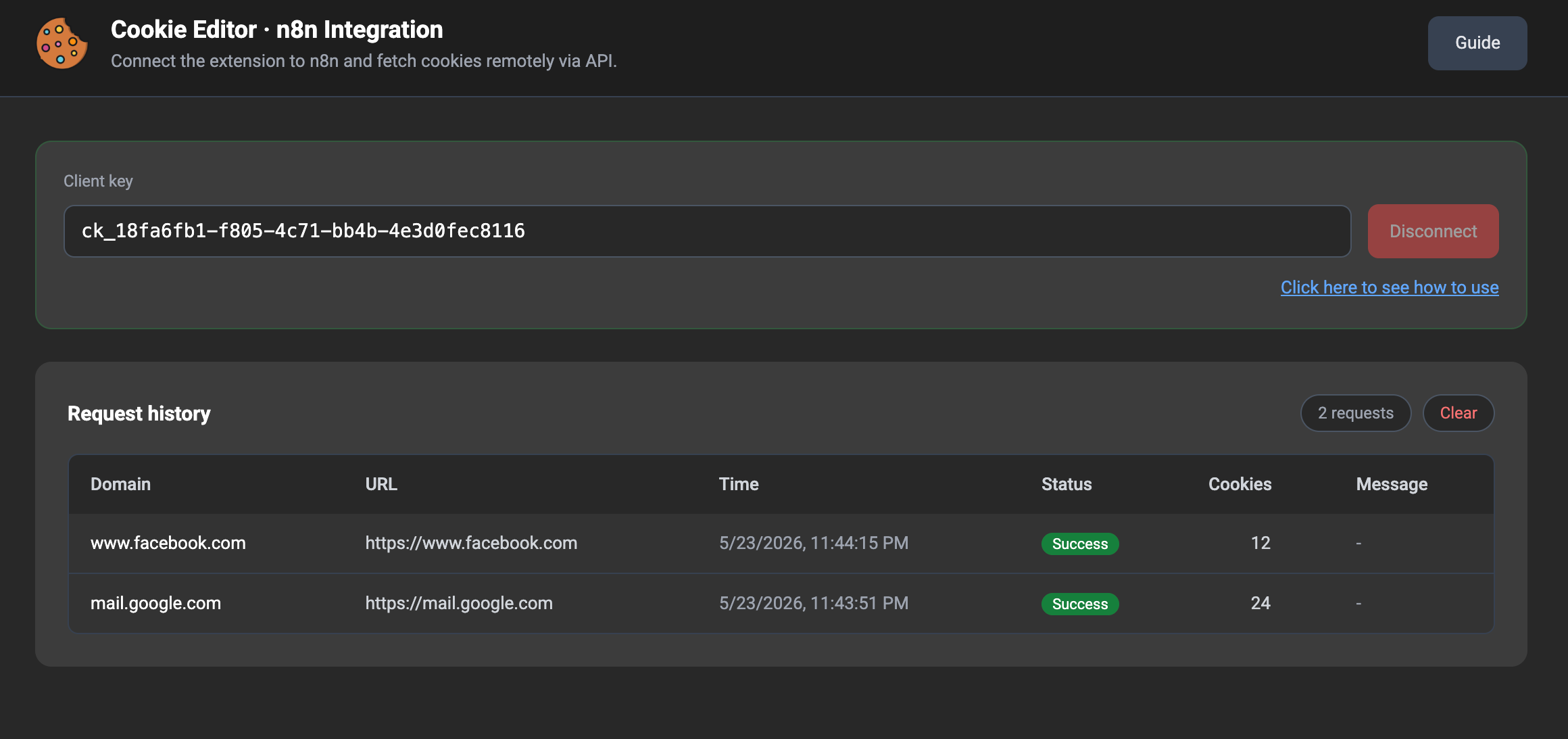
Request history
The extension stores up to 50 recent requests in the n8n tab (local only):
- Domain, URL, time, status, cookie count, error message
- Clear history with the Clear history button
Disconnect
Click Disconnect on the n8n tab:
- The extension sends
{ type: "disconnect" }and closes the WebSocket - The server removes the session — the old
client_keystops working - The local password may be cleared depending on disconnect settings
Common errors
| API error | Cause |
|---|---|
client_not_found |
Extension not connected or already disconnected |
extension_timeout |
Extension did not respond within 30 seconds |
extension_error |
No cookies for that URL, or missing local password |
| Decryption failed | n8n password differs from Connect password |
Requirements for reliable operation
- Chrome must be running with the extension connected
- The n8n tab or background service worker must keep the WebSocket alive
- The URL in the request must have cookies in the browser (you must have visited that site)