
Import lets you bring cookies into your browser from a file, pasted text, or a share link from someone else.
Open Import
- Open the Cookie Editor side panel on the target site (http/https).
- Click the Import icon (down arrow) in the top toolbar.
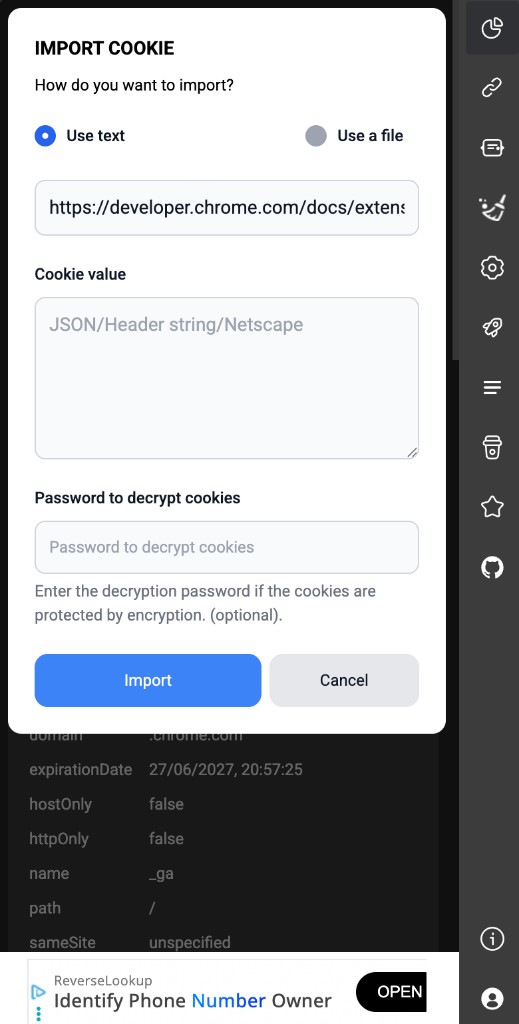
Choose import source
Use text
- Select Use text.
- Paste cookie content into the textarea (placeholder:
JSON/Header string/Netscape). - Enter the URL to apply cookies to (defaults to the current tab; you can edit it).
- If the cookies are encrypted, enter Password to decrypt cookies.
- Click Import.
Use a file
- Select Use a file.
- Choose a
.txtor.jsonfile from your computer. - Enter the URL and decrypt password if needed.
- Click Import.
Supported formats
The extension auto-detects the format:
| Format | Description | Example |
|---|---|---|
| JSON | Array of Chrome cookie objects | [{"name":"session","value":"abc",...}] |
| Header string | name=value; name2=value2 |
session=abc; _ga=GA1.2... |
| Netscape | Netscape/Mozilla .txt format |
Tab-separated lines, # comments |
Decrypt password
- Only needed if cookies were exported with encryption (filename starts with
E2EE_...). - The password is processed entirely on your device — never sent to the server.
Import from a share link
When someone sends a link like https://cookieeditor.org/cookie/link/{uuid}:
- Open the link in a browser with Cookie Editor installed.
- The extension opens a dedicated import page.
- Enter the password the sender set.
- Cookies are decrypted and imported for the matching domain, then you are redirected to that site.

Options after import
Under Settings → Import, you can enable Reload page to automatically refresh the tab after a successful import (enabled by default).
Notes
- Import only works on http/https pages.
- Share links use a different AES format than export files — use the link import page, not the side panel paste modal.
- If import fails, check the target URL, file format, and decrypt password.
Next steps
Next
Export cookies