
Cookie Editor is a Chrome extension that lets you view, edit, import, export, and share cookies directly in your browser. It opens as a side panel — not a small popup.
Requirements
- Google Chrome or a Chromium-based browser (Edge, Brave, Arc, etc.)
- A version that supports Manifest V3 and the Side Panel API
Step 1: Install from the Chrome Web Store
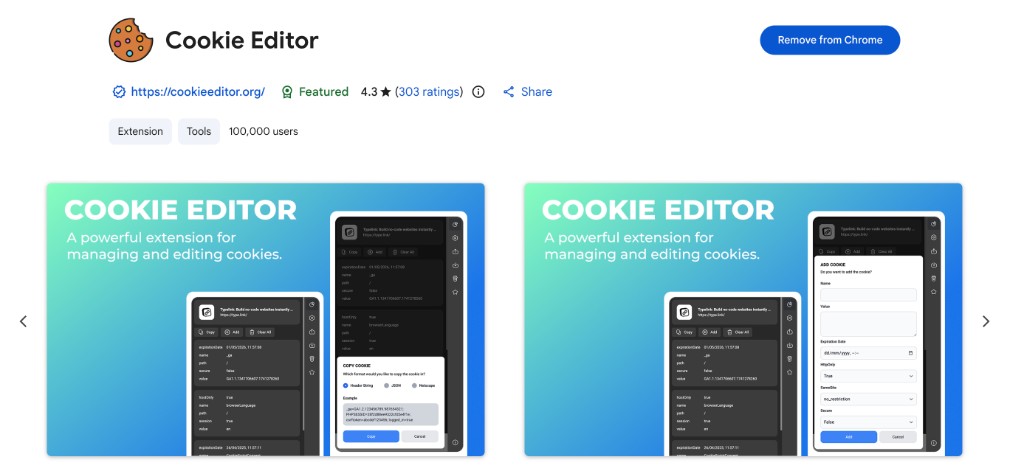
- Open Cookie Editor on the Chrome Web Store.
- Click Add to Chrome.
- Confirm the permissions the extension requests (cookies, storage, side panel, etc.).
After installation, the Cookie Editor icon appears on your browser toolbar.
Step 2: Open the side panel
- Visit any website (http or https).
- Click the Cookie Editor icon on the toolbar.
- The side panel opens on the right and shows cookies for the active tab.
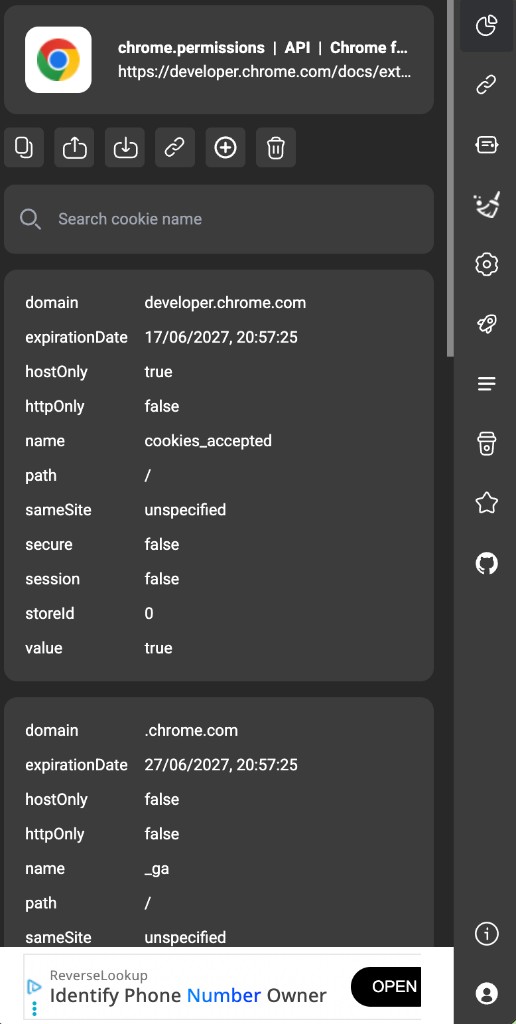
Step 3: Learn the interface
| Area | Description |
|---|---|
| Header | Title and URL of the current page |
| Toolbar | Copy, Export, Import, Share, Add cookie, Delete all |
| Search box | Filter cookies by name |
| Cookie list | Expand each cookie to view or edit properties |
| Right sidebar | Switch tabs: Cookies, Links, n8n, Settings, Account, etc. |
The extension only shows cookies on http/https pages. chrome:// pages and the Chrome Web Store will not display cookies.
Step 4: Sign in (optional)
Some features, such as Share cookie, require a Cookie Editor account:
- Click the account icon at the bottom of the right sidebar.
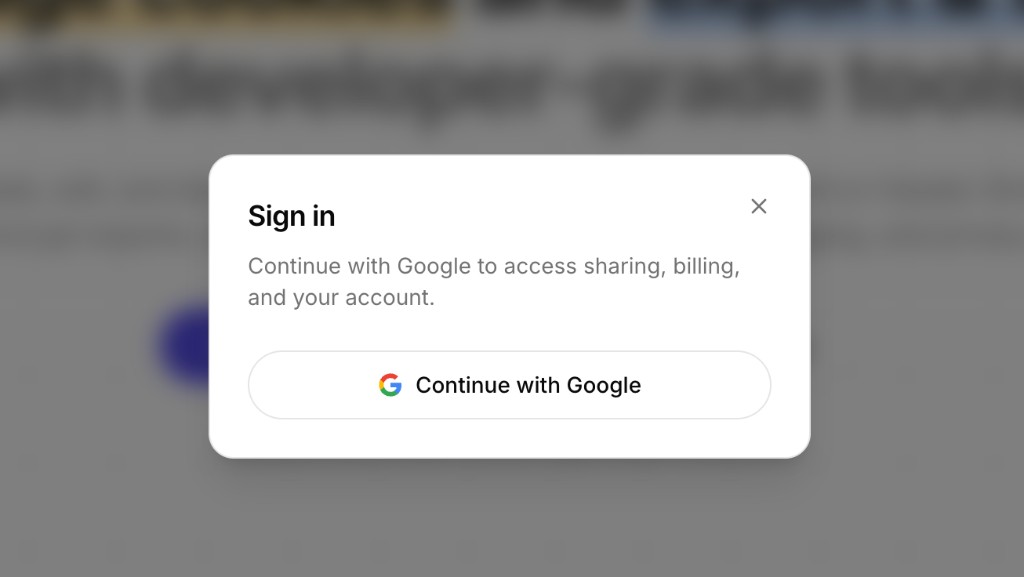
- Choose Continue with Google on cookieeditor.org/login.
- After signing in, the extension picks up your session via browser cookies.
After installation
On first install, the extension may open a welcome tab on cookieeditor.org. From there you can read more guides or upgrade to Standard to use Share cookie.
Next steps
Next
Import cookies