
Export saves cookies from the current page to a file for backup, transfer to another machine, or use in automation tools.
Open Export
- Open the side panel on a page that has cookies to export.
- Click the Export icon (up arrow) in the top toolbar.
- The EXPORT COOKIE modal appears.
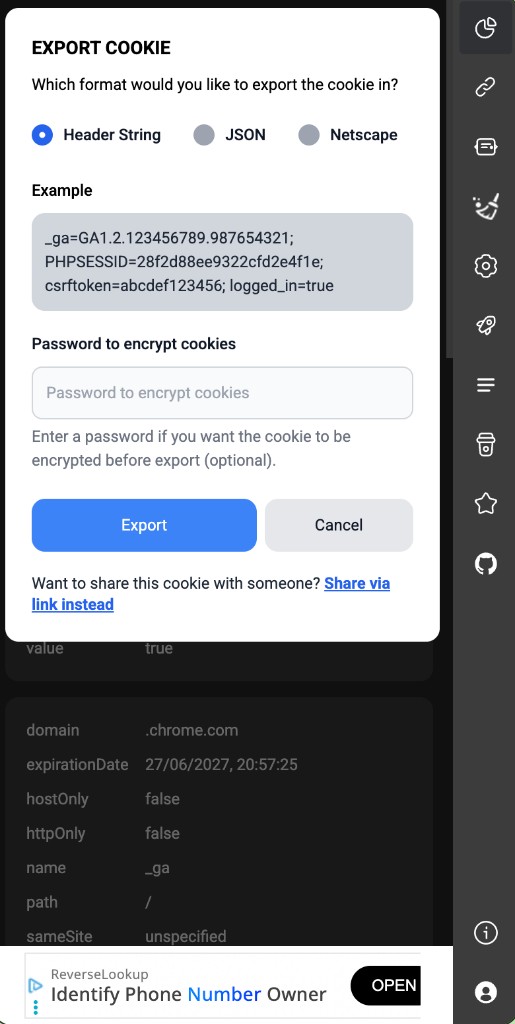
Choose a format
| Format | Description | Download |
|---|---|---|
| Header String | name=value; ... for HTTP headers |
.txt or .json |
| JSON | Chrome cookie object array, easy to read/edit | .json |
| Netscape | Netscape/Mozilla format, works with many tools | .txt |
Each format shows an Example preview in the modal so you know what the output looks like.
Encrypt on export (optional)
- Enter Password to encrypt cookies if you want to protect the file.
- Click Export.
- The downloaded file is prefixed with
E2EE_, e.g.E2EE_example.com_json_1716480000.txt.
When importing again, use the same password in "Password to decrypt cookies".
Export passwords are never sent to the server — encryption and decryption happen on your device only.
Download filenames
- Unencrypted:
{hostname}_{format}_{timestamp}.jsonor.txt - Encrypted:
E2EE_{hostname}_{format}_{timestamp}.txt
Share instead of exporting a file
At the bottom of the Export modal, Share via link instead opens the online share flow (requires sign-in + Standard plan). See Share cookies.
Quick copy (no file)
To copy to the clipboard instead of downloading:
- Click the Copy icon in the top toolbar.
- Choose a format (Header string / JSON / Netscape).
- Paste wherever you need the cookies.
Set the default copy format in Settings.
Next steps
Next
Delete cookies