
Cookie Editor supports deleting cookies one at a time or clearing all cookies for the current page.
Delete a single cookie
- Open the side panel on the page where you want to delete cookies.
- Find the cookie in the list (use Search cookie name if needed).
- Hover over the cookie and click the trash icon.
- If confirm delete is enabled in Settings, a Delete modal appears — click Delete to confirm.
- The cookie is removed from the browser and the list refreshes.
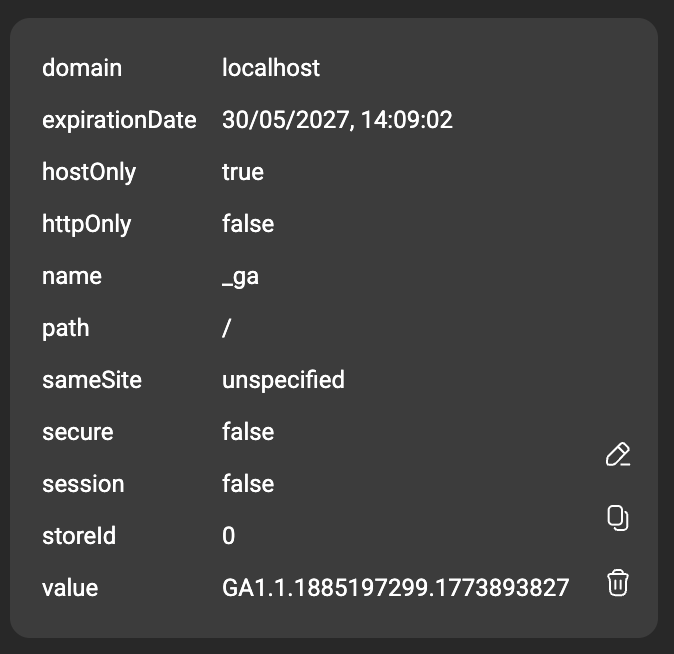
Delete all cookies for the page
- Open the side panel on the target tab.
- Click Delete all (trash icon) in the top toolbar (shown only when the page has cookies).
- If confirm delete all is enabled, a Clear cookie modal appears — confirm to proceed.
- The extension calls
chrome.cookies.removefor each cookie on the active tab URL.
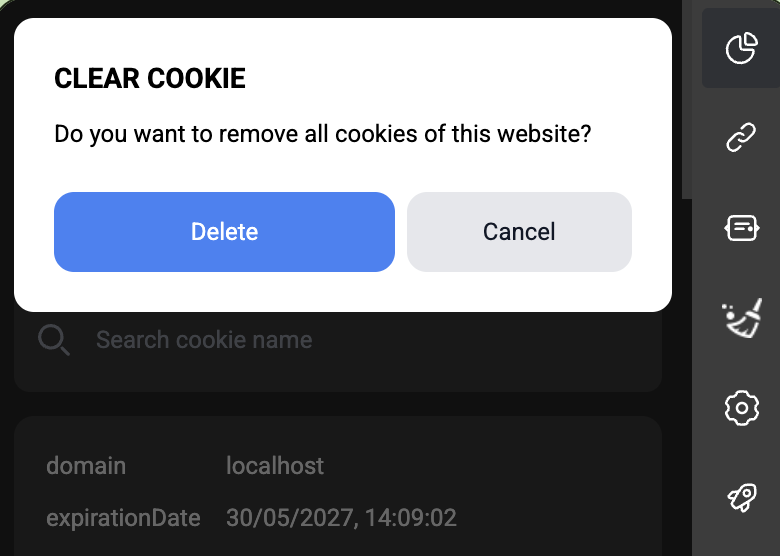
Confirm delete settings
Go to Settings (gear icon in the sidebar):
- Confirm delete — ask before deleting a single cookie
- Confirm delete all — ask before clearing all cookies
Turn confirmation off if you want to delete without a modal.
Context menu (optional)
Enable Context menus in Settings to add right-click options on pages:
- Remove — delete all cookies for the page URL
- Copy — copy cookies as JSON to the clipboard
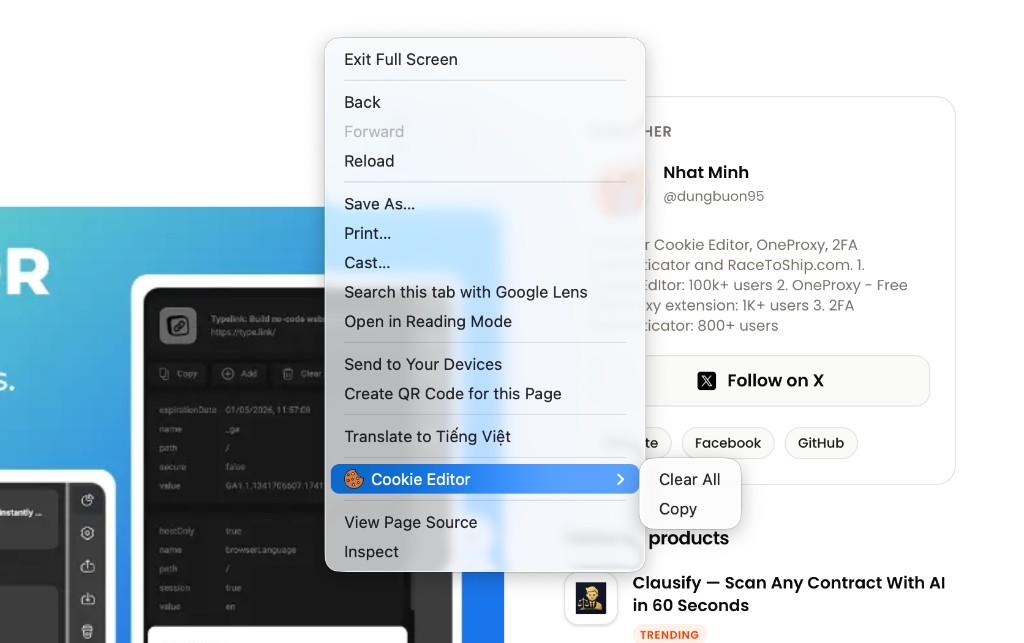
Delete a share link (not browser cookies)
To remove a share link you created earlier (does not delete local browser cookies):
- Open the Links tab in the sidebar (link icon).
- Select the link and open its details.
- Click Delete and confirm.
The link is removed from the server; cookies on your machine are unchanged.
Notes
- Deleting cookies may sign you out of websites — this cannot be undone.
- Delete all only affects cookies for the active tab, not your entire browser.
- Some
HttpOnlycookies are still visible in the extension and can only be removed via the Chrome API.
Next steps
Next
Share cookies